Whenever you select
multiple objects in Revit the Selection panel becomes available under
the Modify Tab.

Here you’ll see the
Filter tool that will open a dialog box listing the number of objects and their
categories.

Using this tool makes it
easier to select harder to pick objects such as the floor slab or if you want
to pick a group of objects.
 There are some additional
tools available alongside the Filter icon, Save, Load and Edit.
There are some additional
tools available alongside the Filter icon, Save, Load and Edit.
*These tools are also
available under the Modify tab on the Selection panel.
The Save
Selection tool allows you to save the selected elements as a Group
which you can retrieve latter. When saving, you name the set for future
reference. You can retrieve this selection again after you have invoked the
filter tool again by once again selection multiple items, you can then select
the Load icon to Retrieve Filter sets.

The Edit
tool allows you to edit the elements in your selection list.
After you have retrieved a
selection set you can modify the saved selection by using the Edit Selection
tool under the Modify tab on the Selection panel.
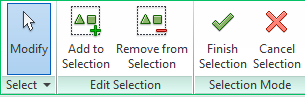 Here the Edit
Selection Set Ribbon tab will display a selection of tools allowing you to
edit the selection set.
Here the Edit
Selection Set Ribbon tab will display a selection of tools allowing you to
edit the selection set.
Add and Remove objects to
the selection set.
Note: You cannot add categories to a
selection-based filter.
To use a selection box
to select multiple elements, first select Multiple on the Options Bar.
Draw the selection box,
then click Finish on the Options Bar.
You can also access your Filters
from the Graphics panel on the View tab.

